


New Features of the SimplBooks AI Assistant (0)

The SimplBooks AI Assistant has received a major update. Previously, it could answer questions about using the software, analyse your company’s data, create summaries and identify potential errors. Now, the AI Assistant can also take care of practical accounting tasks for you.
The AI assistant can create sales and purchase invoices as well as quotations. It can also digitise uploaded purchase invoices and receipts, and record outgoing and incoming payments.
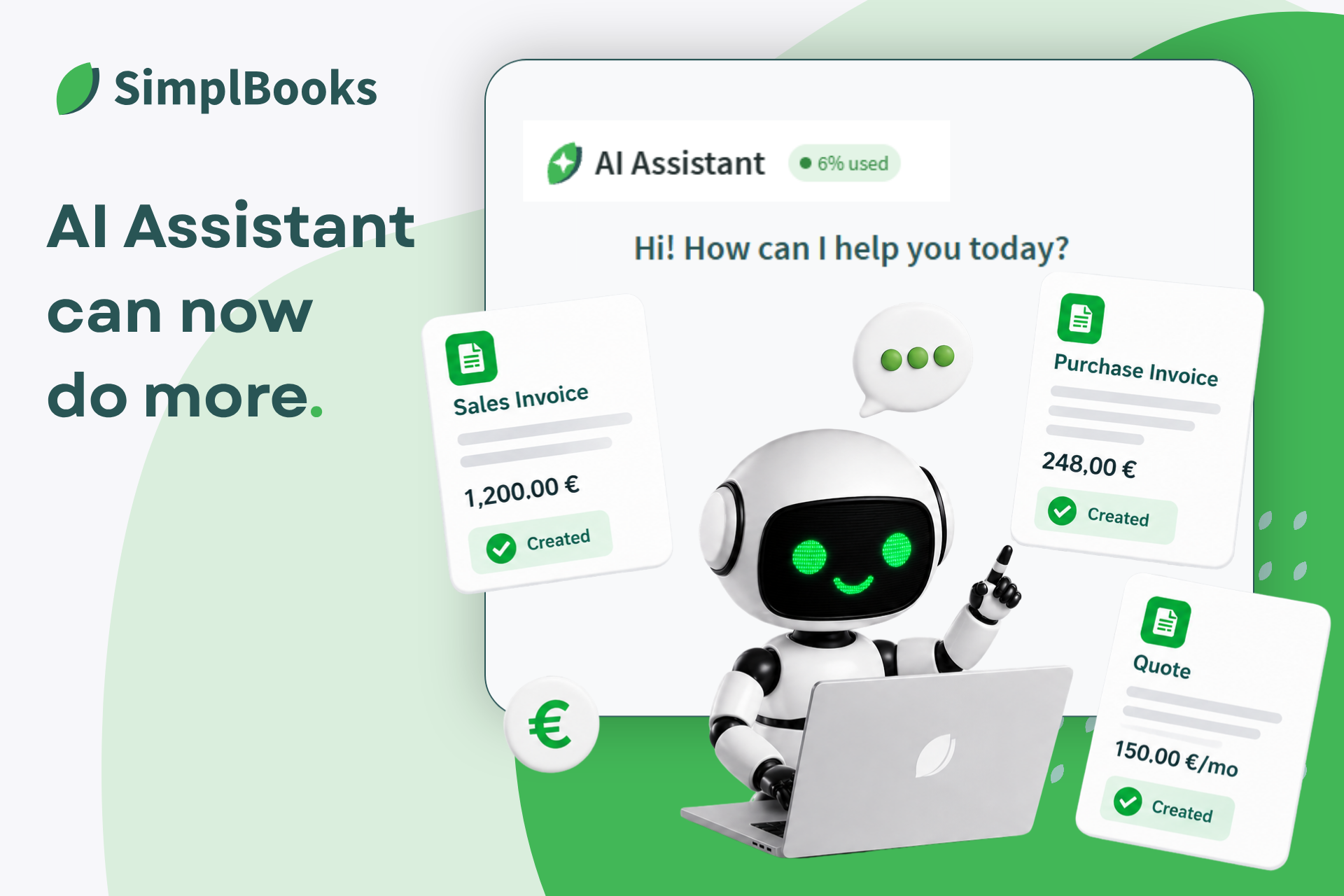
Create sales invoices by simply asking
When creating a sales invoice, you no longer need to fill in every field separately. Simply tell the AI Assistant who you want to invoice, how much you want to charge and what the invoice is for.
For example, you could write:
“Create a €1,200 sales invoice for Nordic Oy for consulting services.”
The AI Assistant uses the information you provide to create the sales invoice directly in SimplBooks. If any essential information is missing, it will ask you for the necessary details.
You can also create several invoices within the same conversation. This makes creating recurring or similar invoices considerably faster. All you need to do at the end is review and confirm the invoices.
Create purchase invoices directly from invoices or receipts
There are now a couple of easy ways to create purchase invoices. You can give the AI Assistant the supplier’s name, purchase details, amount and other necessary information, and it will prepare the purchase invoice for you.
For example:
“Create a purchase invoice from Konttoritarvikkeet Oy. The invoice amount is €248 and the purchase is for office supplies.”
It gets even easier if you already have the invoice or receipt as a file. Upload it to the chat, and the AI Assistant will extract the necessary information, such as the supplier, date, amount and VAT. It will then use this information to create the purchase invoice. You can also upload regular store receipts for the Assistant to process.
If the supplier is not yet in your SimplBooks supplier register, you don’t need to add them manually beforehand. The AI Assistant can identify the supplier’s details from the document, create a new supplier and save it to the register.
The original invoice or receipt is attached to the purchase invoice, so the source document stays safely stored where it belongs. All that’s left for you to do is review the information and make any necessary corrections before confirming it.
Create quotations in the chat
In addition to invoices, the AI Assistant can now create quotations and accounting entries.
To create a quotation, simply tell the Assistant who the quotation is for, which products or services it should include, and their prices and quantities. The Assistant will prepare the quotation based on the information you provide and ask for any missing details if necessary.
For example:
“Create a quotation for Asiakasyritys Oy for website maintenance services. The monthly price is €150 for the first three months and €200 per month after that.”
The Assistant will prepare the quotation based on the information you provide. If anything is missing, it will ask for clarification. You can then review the details and send the quote to your customer.
AI helps, you stay in control
The purpose of the AI Assistant isn’t to take accounting completely out of your hands. Instead, it takes care of the small, repetitive tasks that can otherwise take up a surprising amount of time. The AI Assistant helps with the work, but you remain in control.
Before confirming an invoice, quotation or other document, we always recommend checking that the business partner’s details, amounts, dates, VAT and other relevant information are correct. If anything is missing or needs to be corrected, you can ask the AI Assistant to change it or make the changes yourself.
How to activate the AI Assistant
If the AI assistant has not yet been activated in your SimplBooks account, you can activate it in just a few clicks:
- Log in to your SimplBooks account.
- Select Settings from the top menu.
- Open Integrations.
- Find AI Assistant in the list and select Activate.
- You can then open the chat in the bottom-right corner of SimplBooks and start using the Assistant. You can ask questions, give it tasks, or upload purchase invoices and receipts for it to process.
➝ You can find more detailed instructions on activating the AI Assistant in our user guide here.
💡 When you activate the AI Assistant for the first time, you’ll receive a 30-day free trial. If you don’t remove the integration during the trial period, the service will automatically continue after the trial at the current price.
The idea behind the AI Assistant is ultimately quite simple: less time spent entering data and more time for everything else. Try it with your next invoice and see how much of the work you can leave to the Assistant.


Leave a Reply